
Project Panel
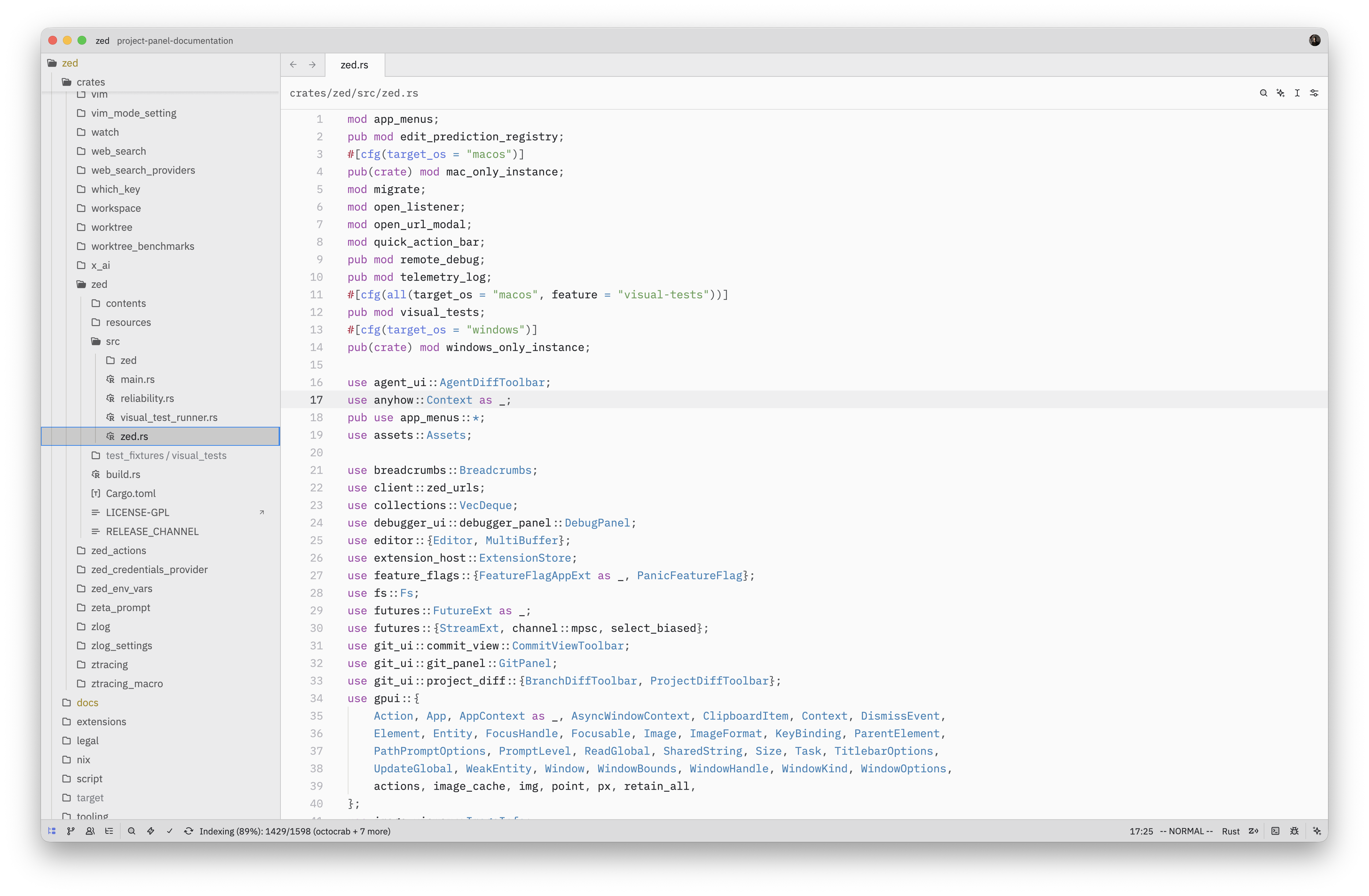
The project panel shows a tree view of your workspace’s files and directories.
Toggle it with project panel: toggle focus (cmd-shift-e|ctrl-shift-e), or click the Project Panel button in the
status bar.
Navigating
Use the arrow keys to move through entries. right|right expands a directory and left|left collapses it. cmd-left|ctrl-left collapses every directory at once. cmd-right|ctrl-right expands every directory at once. Press space|space or click to preview a selected file, without giving it a permanent tab. Editing the file or double-clicking it promotes it to a permanent tab. Middle-clicking a file skips the preview and opens it in a permanent, focused tab right away.
Set preview_tabs.enable_preview_from_project_panel
to false to open permanent tabs with a single click or project panel: open
(space|space).
Auto-reveal
By default, switching to a file in the editor will automatically highlight it in the
project panel and scroll it into view. This
auto-reveal behavior can be
disabled with the project_panel.auto_reveal_entries setting.
Sticky Scroll
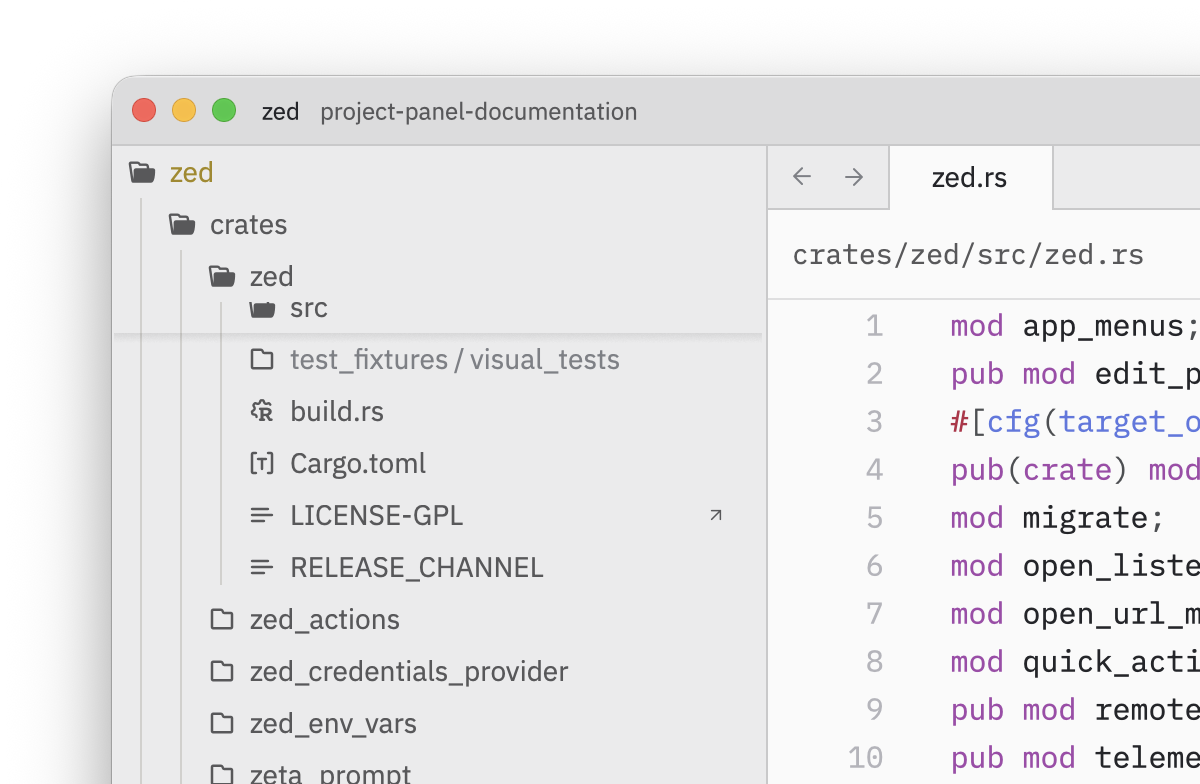
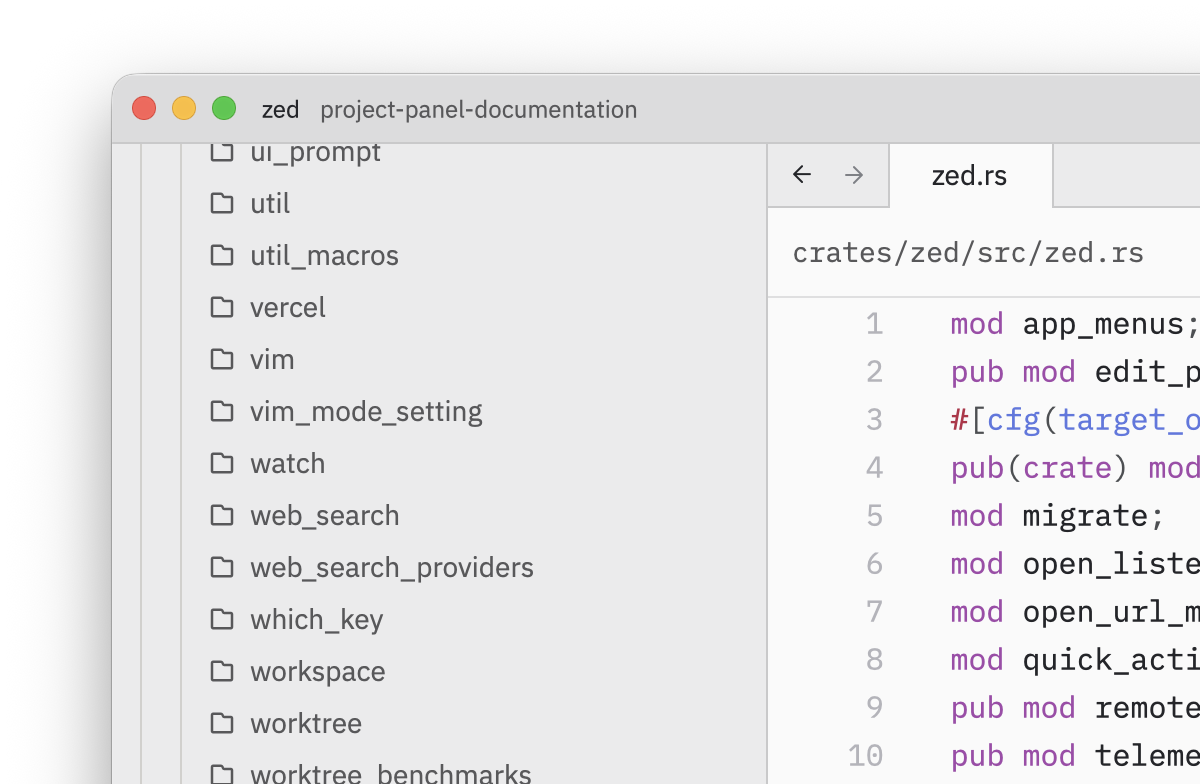
When project_panel.sticky_scroll is enabled (the default), ancestor directories pin themselves to the top
of the panel as you scroll, so you always know which directory you’re on.
Directory Folding
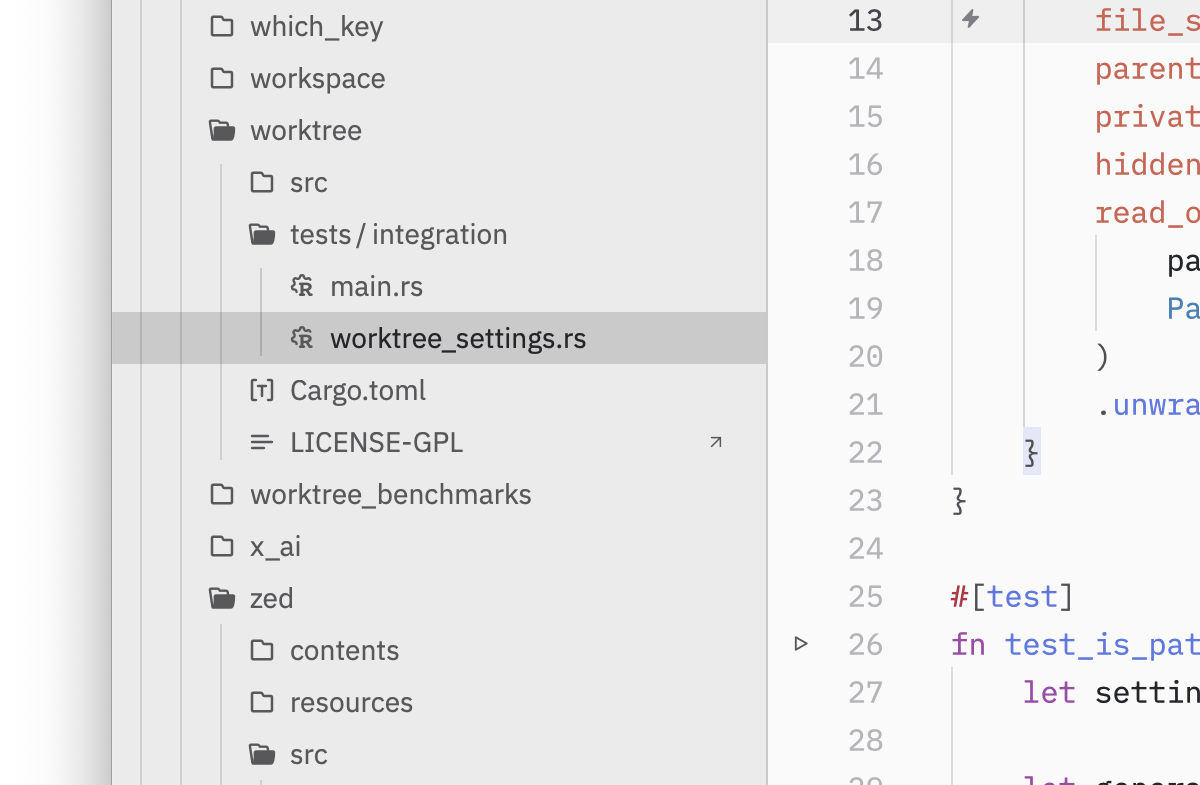
When project_panel.auto_fold_dirs is enabled (the default), chains of directories that each contain a
single child directory are collapsed into one row (for example,
src/utils/helpers instead of three separate levels). Right-click a folded
directory and choose Unfold Directory to expand the chain, or Fold
Directory to collapse it again.
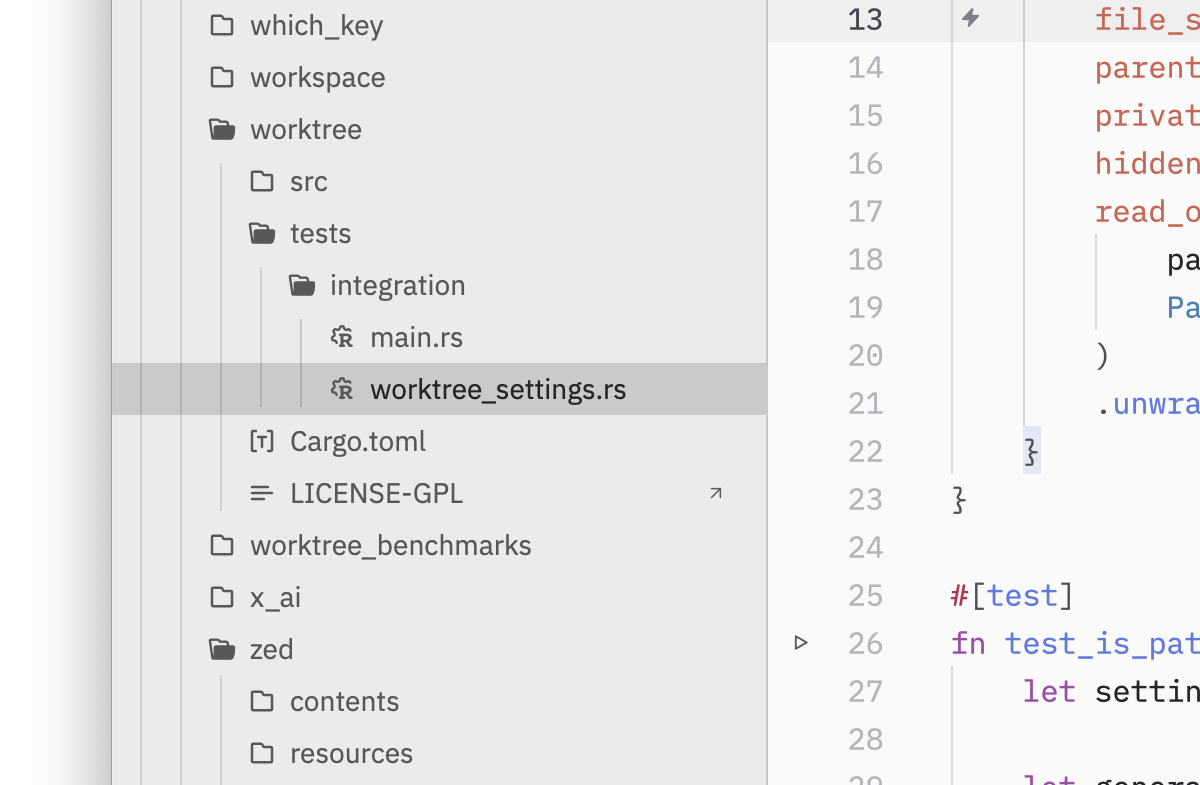
Selecting Multiple Entries
Hold shift while pressing the up/down arrow keys to mark additional entries.
Most file operations, like cut, copy, trash, delete and drag, apply to the full
set of marked entries.
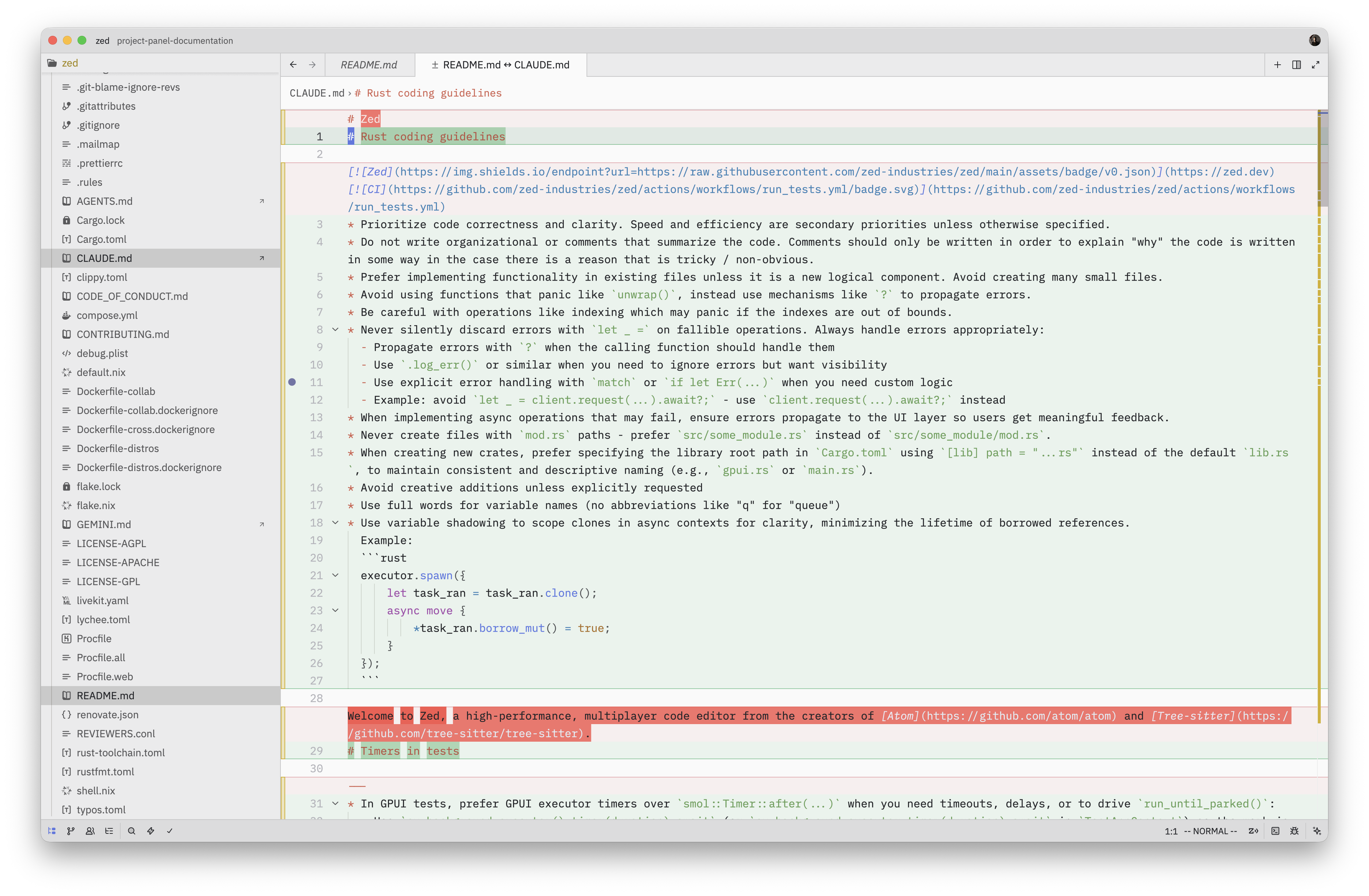
When exactly two files are marked, project panel: compare marked files
(alt-d|alt-d) opens a diff view comparing them.
File Operations
Right-click an entry to see the full list of available operations, or use the keybindings below.
Creating Files and Directories
project panel: new file(cmd-n|ctrl-n) creates a new file inside the selected directory.project panel: new directory(alt-cmd-n|alt-ctrl-n) creates a new directory.
An inline editor appears so you can type the name. Press enter to
confirm or escape to cancel.
Renaming
Press f2|f2 to rename the selected entry. The filename
stem is pre-selected so you can type a new name without accidentally changing
the extension. Press enter to confirm or escape to
cancel.
Cut, Copy, and Paste
project panel: cut(cmd-x|ctrl-x) marks entries for moving.project panel: copy(cmd-c|ctrl-c) marks entries for copying.project panel: paste(cmd-v|ctrl-v) places them in the selected directory.
When pasting would create a name conflict, Zed appends a “copy” suffix (e.g.,
file copy.txt, file copy 2.txt). If a single file is pasted with a generated
suffix, the rename editor opens automatically so you can adjust the name.
Duplicate
project panel: duplicate (cmd-d|) copies and
pastes the selected entries in one step.
Trash and Delete
project panel: trash(cmd-backspace|delete) moves entries to the system trash.project panel: delete(cmd-alt-backspace|ctrl-delete) permanently deletes entries.
Both actions show a confirmation prompt listing the affected files. If any of the files have unsaved changes, the prompt warns you.
Drag and Drop
Drag entries within the panel to move them. Hold alt while dropping to copy
instead of move. You can also drag files from your operating system’s file
manager into the project panel to copy them into the project. Drag and drop can
be disabled with the project_panel.drag_and_drop setting.
Git Integration
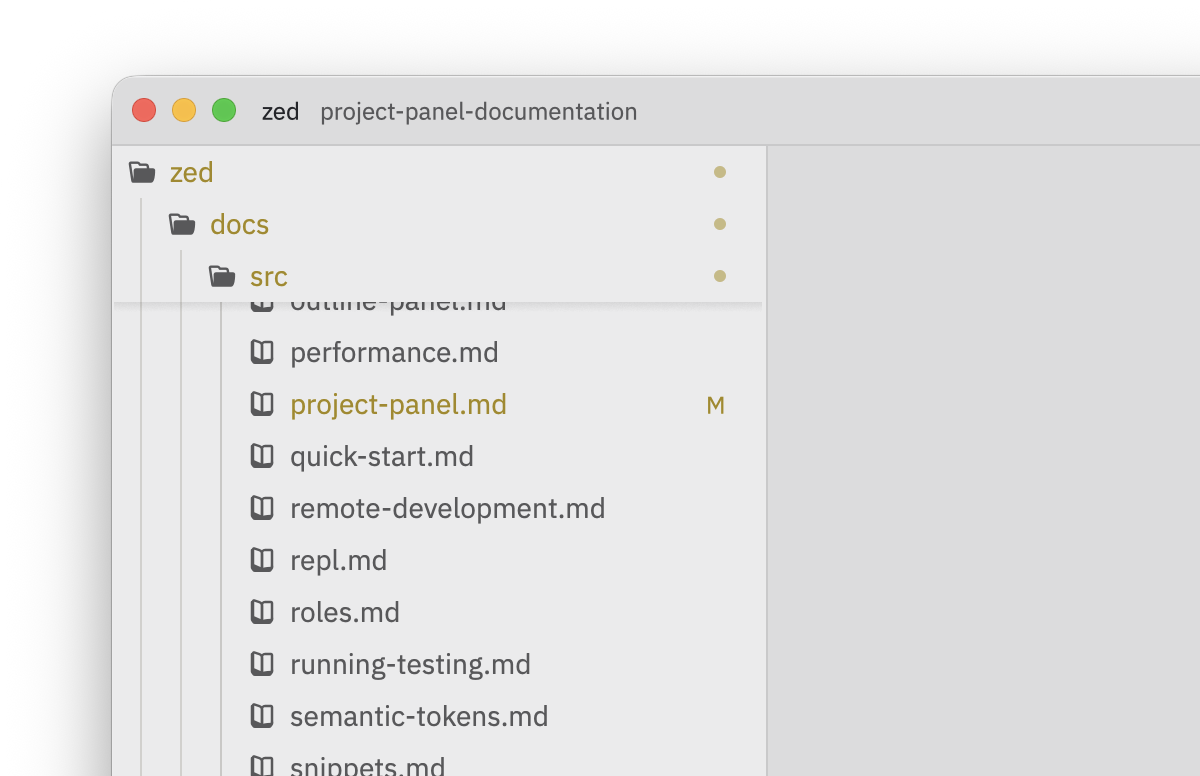
When project_panel.git_status is enabled (the default), file and directory names are tinted
to reflect their git status—modified, added, deleted, untracked, or conflicting.
In projects that are not rooted at a git repository, status is shown only for
active repositories.
Setting project_panel.git_status_indicator to true (disabled by default) adds a letter badge next
to each name: M (modified), A (added), D (deleted), U
(untracked) or ! (conflict).
Use project panel: select next git entry and project panel: select prev git entry to jump between tracked files with
uncommitted changes. The right-click menu also offers Restore File to
discard changes and View File History to browse a file’s commit log.
Diagnostics
The project_panel.show_diagnostics setting controls whether error and warning
indicators appear on file and folder icons. Set it to "all" to see both errors
and warnings, "errors" for errors only, or "off" to hide them. Diagnostics
propagate upward—if a file deep in a directory has an error, its ancestor
folders show an indicator too.
Enable project_panel.diagnostic_badges (disabled by default) to display numeric error and warning
counts next to each entry. Use project panel: select next diagnostic and
project panel: select prev diagnostic to navigate between files that
have diagnostics.
See also Diagnostics & Quick Fixes for editor and tab diagnostic settings.
Filtering and Sorting
Hiding Files
project_panel.hide_gitignorehides files matched by.gitignore. Toggle this withproject panel: toggle hide git ignore.project_panel.hide_hiddenhides entries matchinghidden_files(dotfiles and dotfolders by default). Toggle withproject panel: toggle hide hidden.
Sorting
The project_panel.sort_mode setting controls grouping:
"directories_first"(default) — directories appear before files at each level."files_first"— files appear before directories."mixed"— directories and files are sorted together.
The project_panel.sort_order setting controls name comparison:
"default"— case-insensitive natural sort (file2beforefile10)."upper"— uppercase names grouped first, then lowercase."lower"— lowercase names grouped first, then uppercase."unicode"— raw Unicode codepoint order with no case folding.
Other Actions
project panel: reveal in file manager(alt-cmd-r|alt-ctrl-r) reveals the selected entry in Finder / File Explorer.project panel: new search in directory(cmd-alt-shift-f|ctrl-alt-shift-f) opens a project search scoped to the selected directory.project panel: remove from projectremoves a workspace root folder from the project.
Undo and Redo
The Project Panel keeps a history of the file operations you perform through it,
letting you undo (project panel: undo / cmd-z|ctrl-z) and
redo (project panel: redo / cmd-shift-z|ctrl-shift-z) these
operations, with support for local and remote projects.
The following operations are tracked:
project panel: new fileproject panel: new directoryproject panel: renameproject panel: trashproject panel: pasteproject panel: duplicate
Besides these actions, moving items within the panel using drag and drop, as well as dragging files into the panel from outside Zed, are also tracked.
Undoing a move or rename (for example project panel: rename, a
project panel: cut followed by paste, or a drag within the panel)
returns the item to its original name or location.
Undoing an operation that creates a file or directory (for example
project panel: new file, project panel: new directory,
project panel: duplicate, a project panel: copy followed by
paste, or a drag from outside Zed) moves the new item to your system trash
rather than deleting it. This keeps it recoverable and lets redo restore it, but
it also means you may notice these items appear in your trash.
When you batch several of these together, for example, selecting multiple files and moving them to another folder, the whole batch is undone or redone as a single step, and a failure in one of the operations does not block the rest.
Limitations
- Undo and redo are not available when collaborating in a project shared by
someone else. The same applies to
project panel: trash, so when working as a guest in a shared project, files can only be permanently deleted, and file operations cannot be undone. - Operations whose result is a path excluded from the project via the
file_scan_exclusionssetting are not recorded. For example, with**/*.secretexcluded, creating a file namedtoken.secret, or renaming an existing file totoken.secret, succeeds on disk, but the operation cannot be undone from the panel. - Permanently deleting an item (
project panel: delete) is not tracked and cannot be undone. - Undoing a
project panel: trashrestores the item from your system’s trash. If you empty the trash, the item can no longer be restored. - Undo and redo act on the current state of the filesystem. If something changed outside Zed, for example, a conflicting file now exists at the destination, or the item was moved or deleted by another program, the operation may no longer be undoable, and Zed will show a notification accordingly.
- On remote hosts without system trash support,
project panel: trashwill fail when used, along with anything that relies on it, such as undoing a trash or undoing an operation that creates a file or directory. At the time of writing, Zed does not reliably detect trash support ahead of time, so the action is always available but may report an error. - The undo history is not persisted across sessions, so quitting Zed clears it.